


Universal TV Remote for All TV
4.46.47K Reviews
App Specs
- Version
- 2.5.5
- Updated On
- License
- Free
- Downloads
- 10,000,000+
- Developer
- BoostVision
- Categories
- Tools
- Platform
- Android
Screenshots
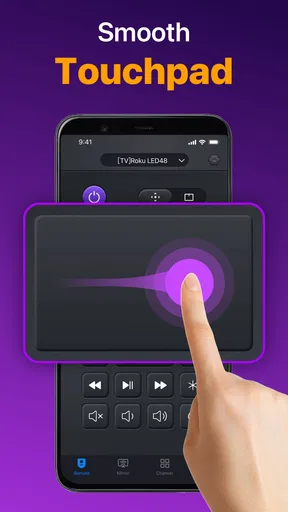
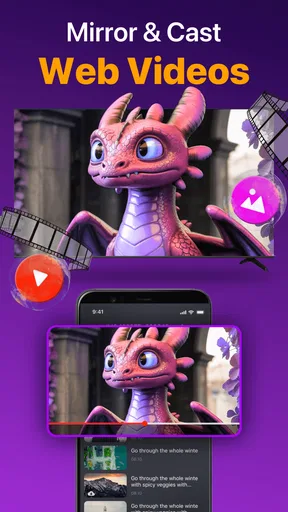
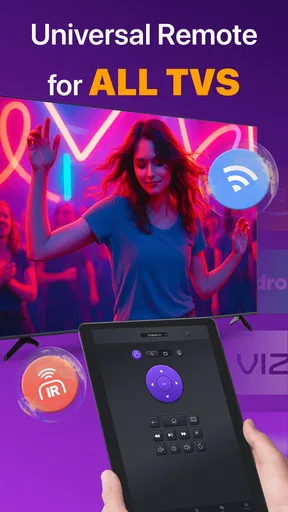
 Analysis by AppCompare
Have you ever found yourself frantically searching for the TV remote, only to discover it wedged between couch cushions or mysteriously vanished altogether? If so, you're in good company. But fear not, because the Universal TV Remote for All TV app is here to save the day. In this review, I'll walk you through my experience with this nifty app, sharing the good, the not-so-good, and everything in between. So, kick back, relax, and let's dive in.
Where setup can get frustrating
The promise of using a phone instead of a physical remote sounds straightforward, but the first hurdle is whether the connection method suits your TV and phone. A Wi-Fi connection depends on both devices being on the same network; being connected to the internet is not quite the same thing as being on the same local network. If the app does not find the television, I would check that basic detail before reinstalling anything.
Network arrangements can also trip people up. A guest network, a router that separates connected devices, or a phone switching between networks may prevent two devices from seeing one another. In that situation, the app may appear unresponsive even though the TV itself is working normally. I would first put the phone and television on the same ordinary home network, then try discovery again.
The other important distinction is between Wi-Fi control and infrared control. Infrared only helps when the phone has an IR blaster; it is not a feature that every phone can provide through an app alone. If your phone lacks that hardware, trying to make an IR connection work will not solve a Wi-Fi pairing problem. Knowing which route you are using makes troubleshooting much less of a guessing game.
Getting Started with Universal TV Remote for All TV
First things first, downloading the Universal TV Remote for All TV app is a breeze. Available for both Android and iOS, just head over to your app store, type in the name, and hit download. Once installed, the app greets you with a clean and straightforward interface that even the least tech-savvy among us can navigate with ease.
Setting It Up
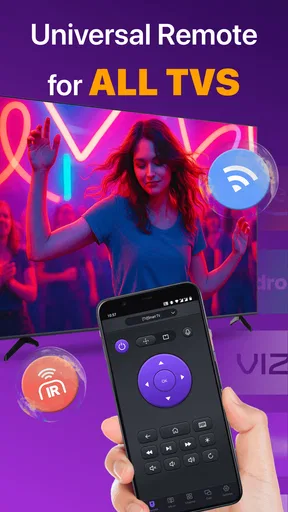
Okay, so you've got the app installed. Now what? Setting it up is as simple as pie. The app guides you through a step-by-step process to connect your phone to your TV. It supports a wide range of brands and models, which is pretty impressive. Just make sure your smartphone and TV are connected to the same Wi-Fi network, and you're good to go.
If your TV isn't Wi-Fi-enabled, no worries! The app also supports IR (infrared), so you can use your phone's IR blaster to control your TV. It's like magic!
Worth Reading Before You Choose

EA SPORTS FC Mobile 26 Is a Bigger Football Game, but It Takes Time

Flipboard Shows What News Apps Must Do Beyond the Feed

Switching to Android Auto Means Rethinking Your Driving Routine

Google Calendar Makes a Crowded Week Easier to Manage

Ludo King Makes the Most of the Minutes Between Plans

Baby Panda World Brings Quick Play to Modern Phones, but Its Game Library Feels Busy
Checks that save time
If connection stalls, I would work through a few simple checks rather than repeatedly tapping buttons. Confirm that the TV is powered on, make sure the phone is connected to the intended home Wi-Fi network, and reopen the app before trying to pair again. If the television offers a network status screen, checking that it is online can help distinguish a TV connection issue from an app issue.
For infrared, point the phone toward the television and make sure the phone actually has an IR blaster. Infrared is line-of-sight, so a cabinet door or an object between the phone and TV can block commands. It can also help to test a basic action, such as changing volume, from a position where the phone has a clear path to the TV.
Another practical check is to try the television's own physical controls. If those buttons cannot change the volume or power the TV on, the problem is unlikely to be the remote app. This small check prevents wasting time changing phone settings when the television itself needs attention.
User Experience and Features
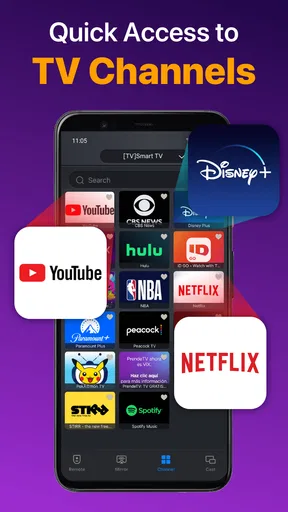
Once you're set up, the app transforms your smartphone into a fully functional remote. It has all the usual buttons you'd expect, like volume control, channel switching, and menu access. But it doesn't stop there. The app also offers some handy features that make it stand out.
- Voice Control: Feeling lazy? Just talk to your phone, and it'll do the rest. "Volume up," "switch to HDMI," or "turn off the TV"—it's like having your personal assistant.
- Customizable Interface: Tailor the remote to your liking. You can rearrange buttons, change themes, and even set up custom macros for specific actions.
- Multi-Device Support: Control multiple TVs or devices from a single app. Whether it's the living room TV or a soundbar, you've got it covered.
The app also prides itself on its responsiveness. Commands are executed almost instantly, and the lag is minimal, which is a huge plus.
A useful role in everyday routines
I find a phone remote most useful as a backup that is already within reach, rather than as a reason to discard every physical remote in the house. Imagine sitting down to watch something and realizing the TV remote has been left in another room. If the phone is already nearby and the TV is reachable over the home network, adjusting the volume or navigating channels can be quicker than getting up to search.
It can also be handy in a shared household when one remote regularly goes missing. A family member can use their own phone for a quick adjustment without interrupting someone else’s search. For guests, though, a physical remote is usually easier to hand over: it does not require installing an app or explaining how to connect a phone to the TV.
That distinction is the key trade-off. A phone offers convenience when it is charged, close at hand, and connected properly. A standard remote is simpler for repeated use, works without opening an app, and is often the better choice for someone who wants dedicated buttons they can find by touch. I would keep the original remote somewhere accessible even if this app becomes my everyday backup.
What Could Be Improved?
No app is perfect, and the Universal TV Remote for All TV is no exception. While it does a lot of things right, there are a few areas where it could improve. For starters, the app contains ads, which can be a bit distracting. Although they offer an ad-free version for a small fee, it's something to consider if you're not a fan of interruptions.
Additionally, while the app supports a wide range of TVs, there might be some older models or less common brands that aren't compatible. It's always a good idea to check the compatibility list before getting too excited.
When a command does not work
If the app connects but a particular button does nothing, I would separate that from a total connection failure. Try a basic function first, then test another, such as volume and channel control. If only one type of command fails, the issue may be specific to the TV's available controls or the way that function is handled, rather than a broken connection overall. Keeping expectations modest is sensible: a universal remote app cannot guarantee that every television exposes every control in the same way.
If the whole app stops responding, closing and reopening it is a reasonable first step. Then check whether the TV is still on the same network and whether the phone has changed networks. For infrared, restore a clear line of sight and aim toward the television. These checks are simple, but they address the most common differences between a command not being sent and a TV not receiving it.
It is also worth remembering that a television’s own menus and input choices can be confusing independently of the remote. If a command appears to have worked but the screen does not show the expected result, look at the TV itself: it may be on another input, paused in a menu, or otherwise not displaying the content you expected. The app can send controls; it cannot make an unavailable source appear.
Who will get the most from it?
This is a strong fit for someone who often misplaces a remote, wants a convenient backup, or prefers to make occasional adjustments from a phone. It makes most sense when the TV is compatible and the household Wi-Fi is stable, or when the phone has the required infrared hardware for direct control. BoostVision develops the app, which is presented as a free tools app; in-app purchases are available, so I would check the purchase details before paying for anything.
The app is less compelling if you need a guaranteed replacement for a specific television’s full set of controls, or if you do not want to rely on a phone being available and connected. It may also be the wrong choice for a household where different people need immediate access without setting up their own phones. In those cases, a manufacturer’s remote or a conventional universal remote can be the more dependable option.
There is a useful middle ground for people unsure about compatibility: install it and test the everyday controls you actually need before building a routine around it. Try volume, power, and the functions you use most, rather than assuming that a successful connection means every control will behave exactly like a dedicated remote. That quick trial gives a more realistic picture of whether it fits your TV and habits.
Final Thoughts
All in all, the Universal TV Remote for All TV app is a solid choice for anyone looking to ditch their traditional remote in favor of something more versatile and convenient. Its ease of use, wide compatibility, and extra features make it a must-try for tech enthusiasts and casual users alike.
So, next time your remote is playing hide and seek, remember there's an app for that. Happy watching!
My practical verdict
Universal TV Remote for All TV has a clear appeal: it can turn a phone into a handy way to control a television without having to locate the usual handset. It has an average rating of 4.4 from around 174,000 ratings, and it has been installed over 10 million times. Those figures suggest a broad audience, but they do not remove the practical question that matters most: whether the connection method works reliably with your own setup.
The app is free to try, is rated for everyone, and its current version is 2.5.3, with Android 7.0 as the minimum operating system requirement. I would treat those details as a starting point, then judge it by a real test at home. Its best role is as a convenient backup or occasional controller, not a promise that every phone and television combination will behave identically.
My recommendation is simple: give it a try if you want a phone-based fallback and are comfortable checking the network or infrared setup when needed. Keep a physical remote for guests, routine use, or situations where dependable tactile controls matter more than convenience. If the app pairs and handles the commands you use most, it can earn a useful place on your phone; if it does not, switching to the TV maker’s remote or a dedicated universal handset is a sensible choice.
Pros
- Wide compatibility with various TV brands.
- User-friendly interface for easy navigation.
- Quick setup process with step-by-step guide.
- Customizable remote layout for personal preference.
- No additional hardware required for functionality.
Cons
- In-app ads can be intrusive at times.
- Requires stable Wi-Fi connection for optimal use.
- Limited support for older TV models.
- App may occasionally lag or freeze.
- Some features locked behind a paywall.
FAQs for Universal TV Remote for All TV
What devices are compatible with Universal TV Remote for All TV?
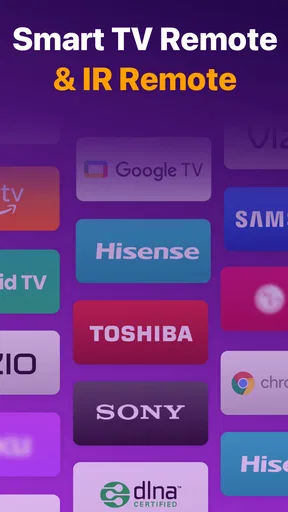
Universal TV Remote for All TV is compatible with a wide range of smart TVs, including popular brands such as Samsung, LG, Sony, and Panasonic. It also supports many older models that have an infrared (IR) receiver. Ensure your smartphone has an IR blaster or that the app supports Wi-Fi control for your specific TV model.
How do I set up the Universal TV Remote for All TV app?
Setting up the Universal TV Remote app is straightforward. First, download the app from the Google Play Store or Apple App Store. Open the app and follow the on-screen instructions to pair it with your TV. You may need to select your TV brand and model, and ensure both devices are on the same Wi-Fi network if using Wi-Fi control.
Can I control multiple TVs with this app?
Yes, Universal TV Remote for All TV allows you to control multiple TVs. You can easily switch between different TV profiles within the app. This is particularly useful for households with multiple TVs of different brands or models. Just set up each TV separately and switch as needed.
Is there a cost associated with using Universal TV Remote for All TV?
The app is free to download and use, but it may offer in-app purchases or ads to support its development. Some advanced features might require a premium version. Check the app description for details about any potential costs and consider whether the free version meets your needs.
What should I do if the app doesn’t work with my TV?
If the app doesn’t work with your TV, first check that your phone has an IR blaster or that the app supports your TV’s Wi-Fi connection. Ensure the app is updated to the latest version. If issues persist, consult the app’s support section or contact the developer for assistance. Compatibility updates are common, so keep an eye out for updates.


